This page is part of the legacy 1.0.x documentation. We recommend using the latest documentation instead.
Check If Running in WebSpatial Mode
The previous section explained that WebSpatial SDK can automatically build two sets of site assets:
- One set targets desktop/mobile platforms and regular browsers and does not include the WebSpatial SDK.
- The other set targets the WebSpatial App Shell and does include the WebSpatial SDK.
Your own application code may also contain logic that is specific to WebSpatial apps, such as:
- Spatial UI that differs greatly from a normal web UI
- 3D content unique to WebSpatial apps
Example project: https://github.com/webspatial/sample-techshop
The left image shows the non-spatial UI; the right image shows the spatial UI.
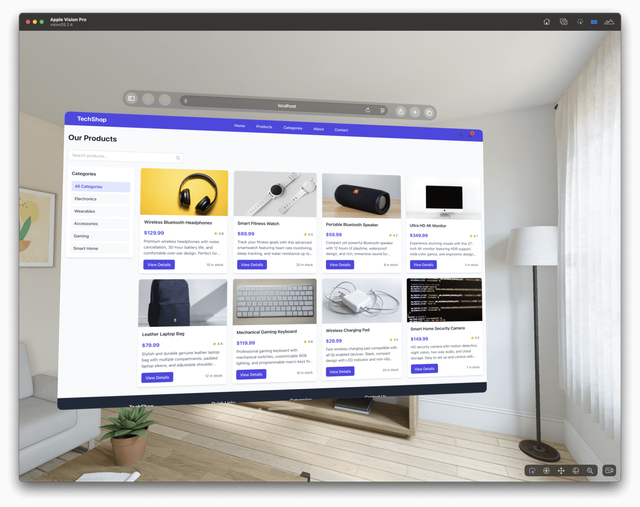
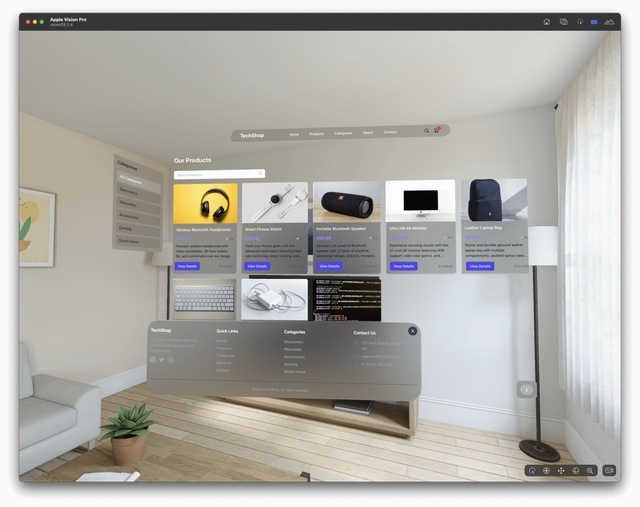
This code shouldn't run or even be included in the build for the desktop/mobile platform and regular browsers.
To achieve this optimization, confidently leverage spatial features and innovate freely, you need a reliable way to know whether the code is running in a WebSpatial app or in a regular website.
Recommended JS solution
If your web project includes a Node.js-based server, you first need to decide whether you're using a single-web-server mode or multi-web-server mode.
In multi-web-server mode, the server for WebSpatial sets the $XR_ENV environment variable when it starts, so your server code can just check that variable to know if it's running in the WebSpatial-specific server.
If you're using a single-web-server mode, you'll need to check the User-Agent string in web requests at runtime to identify whether the request is coming from a regular browser or the WebSpatial App Shell.
WebSpatial-specific UA string
For Packaged WebSpatial Apps on visionOS generated by WebSpatial Builder, the UA string is as follows:
Mozilla/5.0 (Macintosh; Intel Mac OS X 10_15_7; wv)
AppleWebKit/605.1.15 (KHTML, like Gecko)
WebSpatial/0.1.17
For third-party browsers that support WebSpatial apps on visionOS (with built-in WebSpatial App Shell, currently in development), the UA string is as follows:
Mozilla/5.0 (Macintosh; Intel Mac OS X 10_15_7)
AppleWebKit/605.1.15 (KHTML, like Gecko)
WebSpatial/0.1.17 Safari/605.1.15
For client-side JS
In client-side JS, you can either check the UA string at runtime to see if the code is running in a WebSpatial app, or inject the $XR_ENV environment variable during the build so it's available as a constant in your client-side code.
In Vite you can access it directly with import.meta.env.XR_ENV, no extra config needed.
You can also inject other constants derived from $XR_ENV.
For example, if you use client-side routing, it is best to inject a __XR_ENV_BASE__ constant:
// https://vite.dev/config/
export default defineConfig({
  define: {
    __XR_ENV_BASE__: process.env.XR_ENV
      ? JSON.stringify(`/webspatial/${process.env.XR_ENV}`)
      : undefined,
  },
  plugins: [
The WebSpatial's plugins for web build tools automatically inject __XR_ENV_BASE__, so you can skip the manual config above.
See the usage example in the Quick Example.
<Router basename={__XR_ENV_BASE__}>
 <button
   onClick={() => {
     window.open(`${__XR_ENV_BASE__}/second-page`, "secondScene");
   }}>
Recommended CSS solution
A future standardizable approach
This API is not yet supported by WebSpatial SDK.
Use a media query in CSS to match the space color scheme:
On spatial-computing platforms the background environment color is unpredictable and changes with viewpoint and location, so the classic light/dark mode does not apply.
The WebSpatial API introduces a new color scheme called space, which is recognized only in WebSpatial apps. You can use it to target WebSpatial-specific CSS rules.
@media (prefers-color-scheme: space) {
A practical solution for now
Configure your web build tool so that $XR_ENV is injected into HTML.
E.g. with Vite:
- Install the vite-plugin-html plugin.
- npm
- pnpm
- Yarn
npm install -D vite-plugin-html
pnpm add -D vite-plugin-html
yarn add --dev vite-plugin-html
- Update
vite.config.js.
import { createHtmlPlugin } from "vite-plugin-html";

// https://vite.dev/config/
export default defineConfig({
  plugins: [
    createHtmlPlugin({
      inject: {
        data: {
          XR_ENV: process.env.XR_ENV,
        },
      },
    }),
- Modify the HTML template and add a class name that is only present when
XR_ENVindicates spatial mode, for example on<html>.
<%- XR_ENV === 'avp' ? `
<html lang="en" class="is-spatial">
  ` : `
  <html lang="en">
    ` %>
In your CSS, wrap any WebSpatial-specific rules under html.is-spatial.
html.is-spatial {
  .my-card {